Autodesk User Setup
Created: 2023-02-10 13:06:27 -0700
Modified: 2023-02-10 16:36:55 -0700
After adding the new user, we want to get them access to Autodesk licenses. This assumes we have access to their email and it is setup correctly on their workstation.
SETUP ACCOUNT ON AUTODESK.COM
- Login to https//www.autodesk.com/ as rosa.cho@studiocompletiva.com
Password is in Keeper
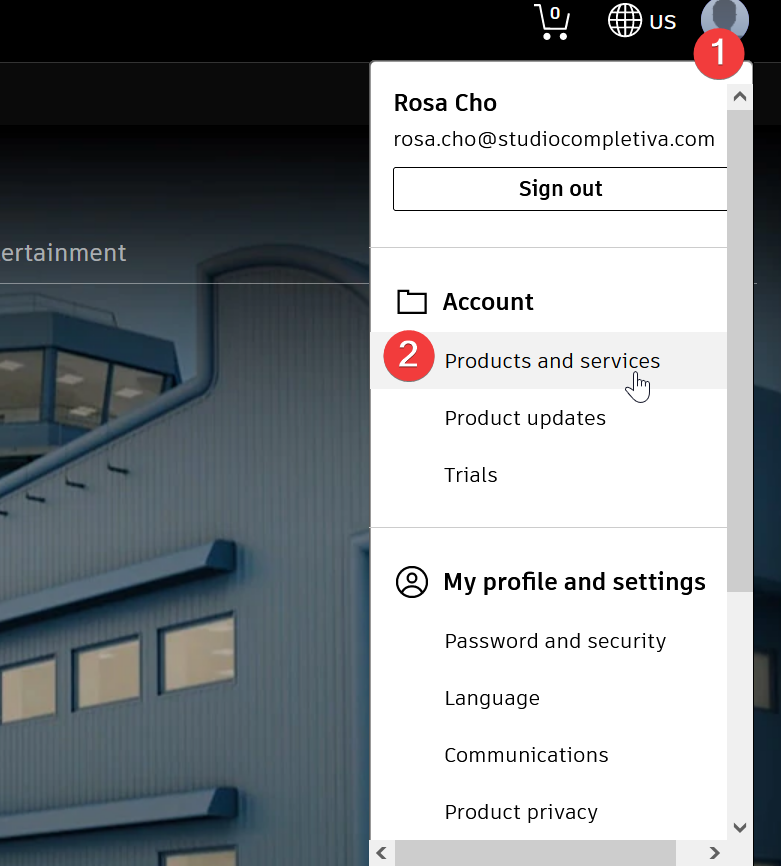
- Click on the account avatar at top right and select Products and Services
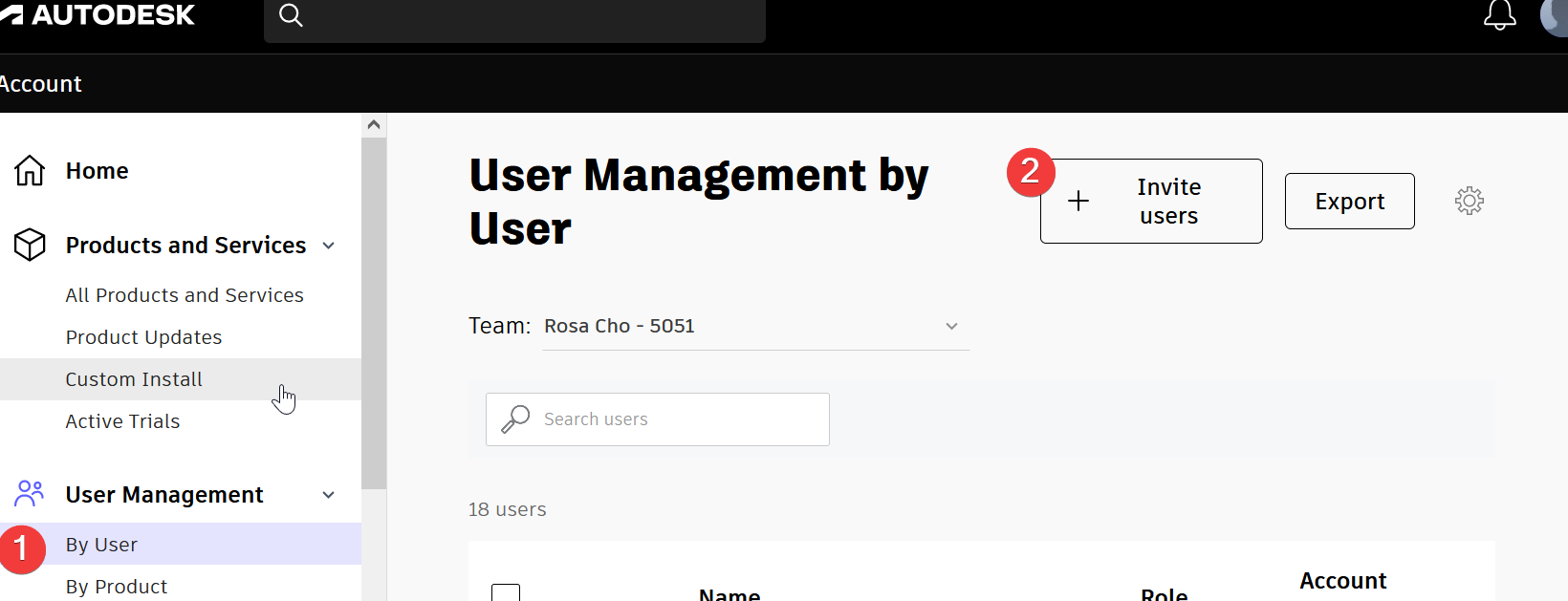
- Click on User Management and then Invite users
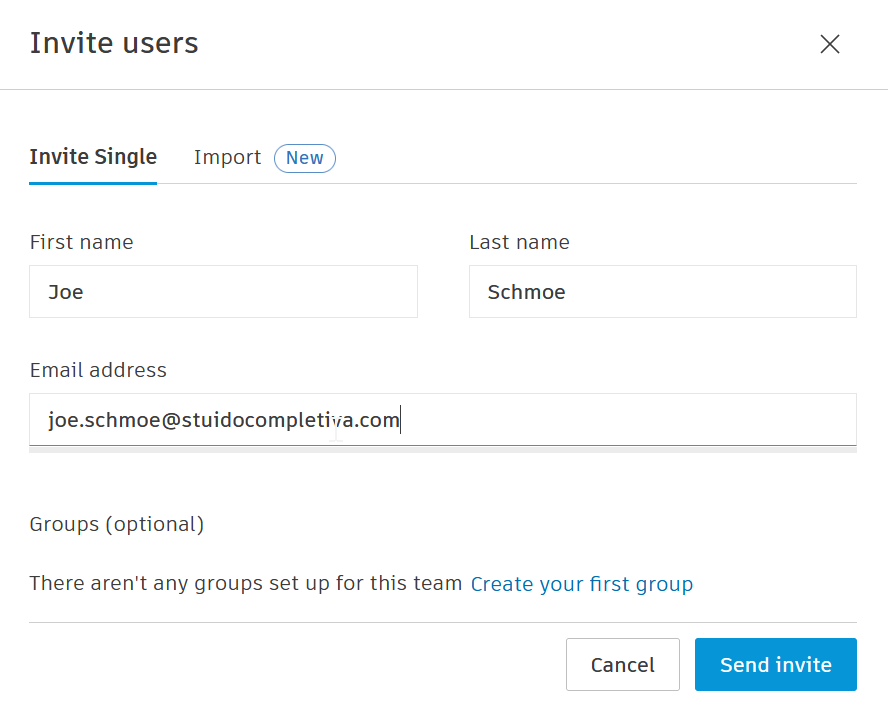
- Fill out the form with the new user's information and click Send Invite
- Assign Appropriate Product license to the new user.
- On the new user's outlook, click the link sent from autodesk to complete the account setup.
-
Login to the Autodesk Desktop App as the User to associate the license with the system and installed Autodesk Applications. If none are currently installed, they should install now. Either pull the installer from the user's account on Autodesk or check G:ITSoftwareAutodesk for the installers.
a. If doing the local install, copy the set of installer files for each product and copy them to the user's desktop to speed the process and reduce the possibility for install errors.