Check and Repair Windows
Created: 2023-02-08 21:43:38 -0700 Modified: 2023-02-10 13:08:47 -0700
If things are misbehaving, crashing, or just not running, these instructions could get you back up and running.
Run SFC to fix minor Windows System corruption issues
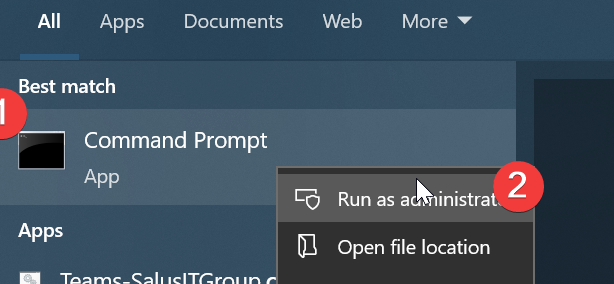
- Click the Windows button on the taskbar or keyboard and type 'cmd'
-
Right-click on the "Command Prompt" application and click on "Run as Administrator". A window will open to allow the process to run in an elevated state.. Click "OK" or "Allow"
-
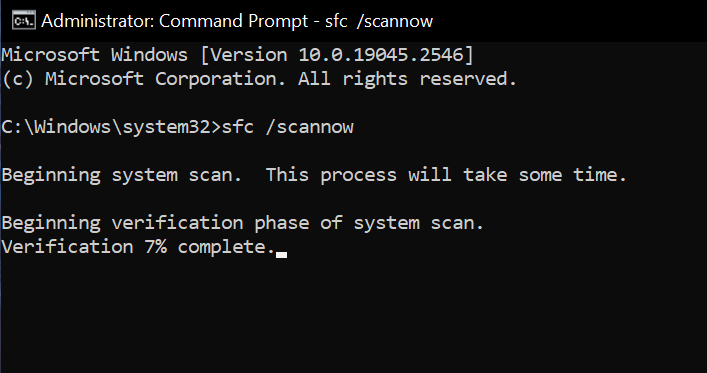
At the command prompt, run the command
sfc /scannow
-
If it comes back with no problems, you are good to go for this part.
a. If it comes back and says it found problems and fixed them, run the command again to make sure that all the problems have been resolved.
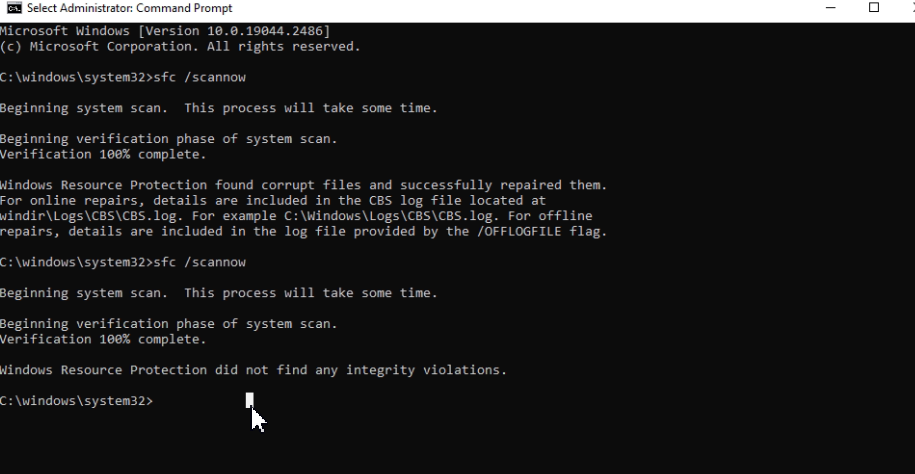
b. If it comes back and says that it was unable to repair the problem, proceed to the next section.
SFC could not fix the problems it found
- While still in the elevated Command Prompt, type the following command.
DISM.exe /Online /Cleanup-image /Restorehealth**
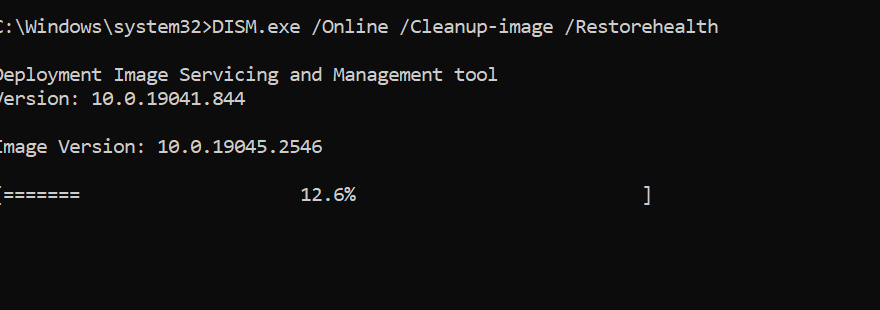
This command should fix most Windows System problems.. But if this fails you will definitely need to contact your systems person for assistance.
FIX the Windows File System with CHKDSK
- Open the CMD prompt as Administrator (see top of this doc for instructions)
- Type the following command
chkdsk C: /f
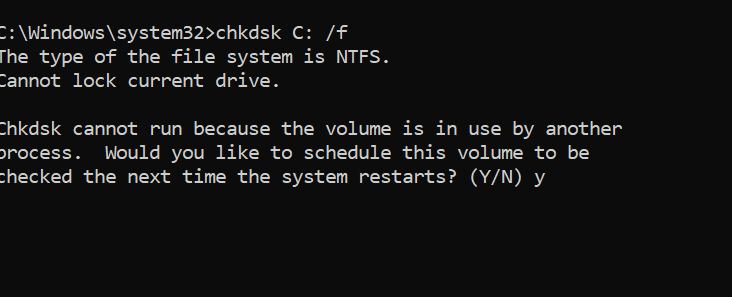
- Reboot your computer to let the command run. The filesystem check will run and possibly reboot the system a couple times as it does it's repairing. When windows returns, your filesystem should be running better.
REMOVE Junk Files
REMOVE junk files and clean things up to reduce space usage and, often, fix problems with residual temporary program files which often cause the programs to run poorly or not at all.
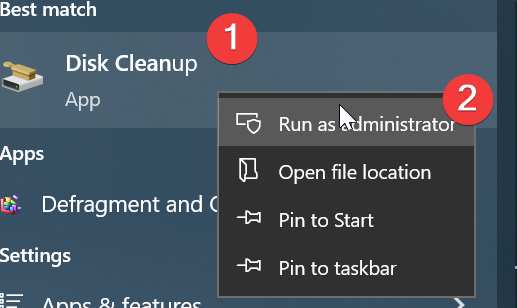
- Click or press the Windows button and type 'disk cleanup'. When you see the app listed, right-click and select "Run as Administrator"
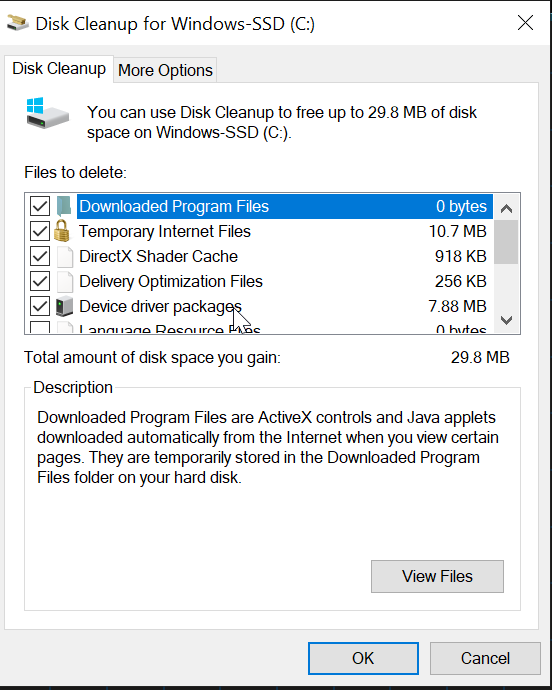
- You can check all the boxes available for cleaning, and click OK
- Open File Explorer
- In the location bar, type %temp% and press enter.
This will take you to the set location of your profile's temporary folder. This is where many of the applications will dump their files and possibly cause issues if they didn't clean up after themselves. Also, If this folder gets too many files in it, that could cause problems.

- Select all the files (CTRL-a) then hold down the SHIFT key while pressing the DEL key. This will remove the clutter and skip the recycle bin. (alternatively, you can right-click on the selected files and choose DELETE while holding the SHIFT key)

Update Windows
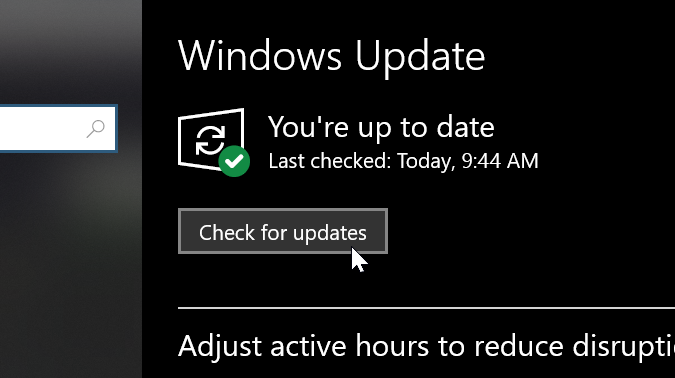
- Click or Press the Windows key/button and type "windows update"
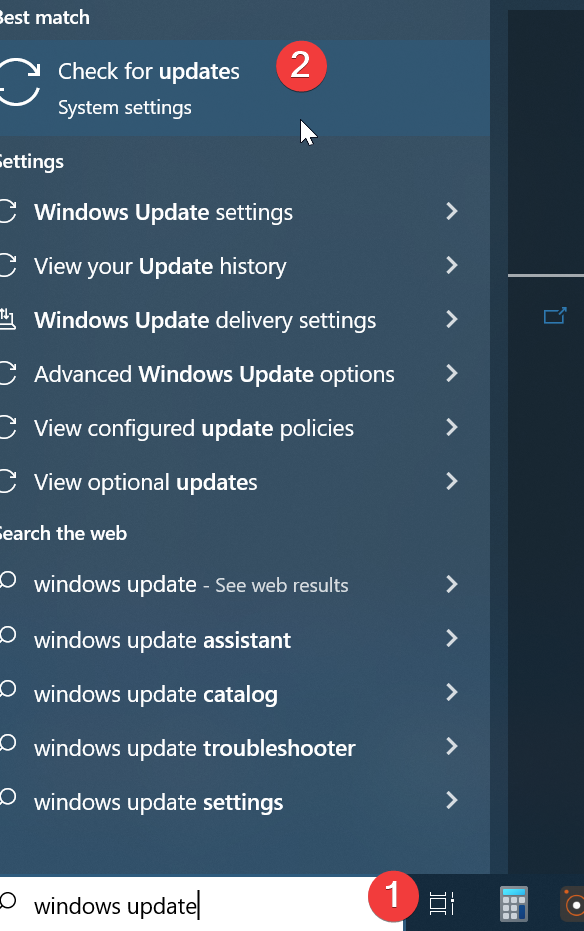
- Install any updates available
- If you are receiving blue screen errors, this is usually a driver issue. While I cannot document the process for all driver installs, I do recommend that you run the manufacturer's tools to update those drivers.
| Dell | SupportAssist |
|---|---|
| Lenovo | Vantage |
| Nvidia Graphics Drivers | Nvidia Experience |
You can also click on "Optional Updates" in the Windows Update Settings to see if there are drivers available for installation.