OpenVPN
Created: 2023-02-09 15:26:32 -0700 Modified: 2023-02-10 14:57:22 -0700

INSTALL INSTRUCTIONS
- Download the VPN Connect Client directly from Openvpn.net here: https://openvpn.net/vpn-client/
- Install on the computer you will be connecting to the Studio Completiva network
- Download this zip file to the same machine
- Remove or rename the old zip file and extracted folder to avoid conflicts and confusion.
- Unzip the file by right-clicking on the file and selecting Extract -- or by using the highly recommended 7-Zip program.
- Run OpenVPN Connect on your computer. If you have no other profiles active, the IMPORT PROFILE wizard will start automatically.
- Click on the File Tab
- Drag and drop the StudioCompletiva.ovpn file into the square area or click BROWSE to navigate to the file extracted from the zip file above.
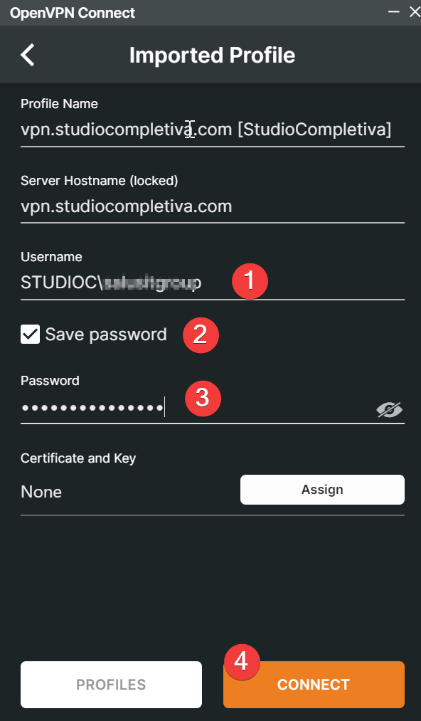
- Enter your Username in the field underneath the Server Hostname
a. Your username is in the following format : <DOMAIN><USERNAME>
For example: STUDIOCmichael.belanger
- Check Save Password
- Enter your Studio Completiva account Windows/Email password
- Click CONNECT
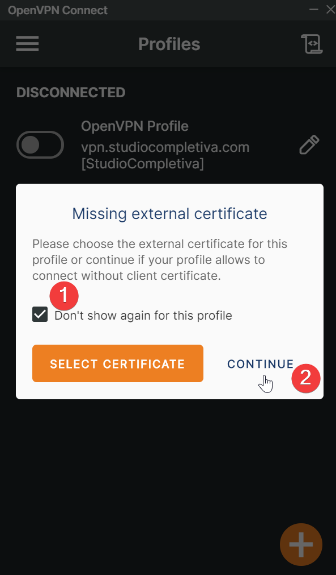
- In the Missing external certificate window, check Don't show again for this profile
- Click CONTINUE
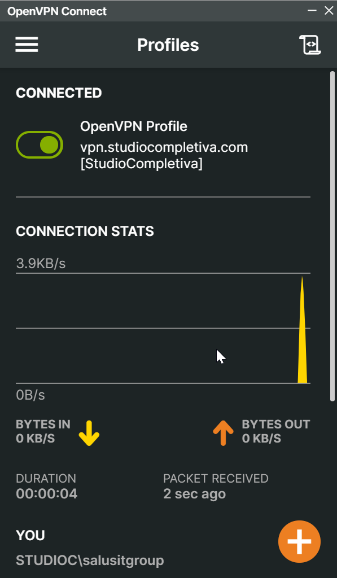
You should now be connected to the VPN
REMOVE OLD CONFIG FILE
To remove the old profile in favor of the updated profile, follow these instructions
- Start OpenVPN Connect client
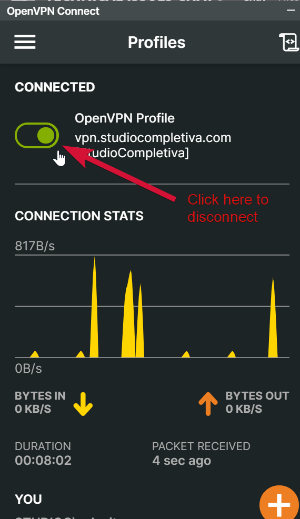
- Disconnect, if you are connected, by using the toggle
- Edit the current profile by clicking on the pencil icon to the right of the profile
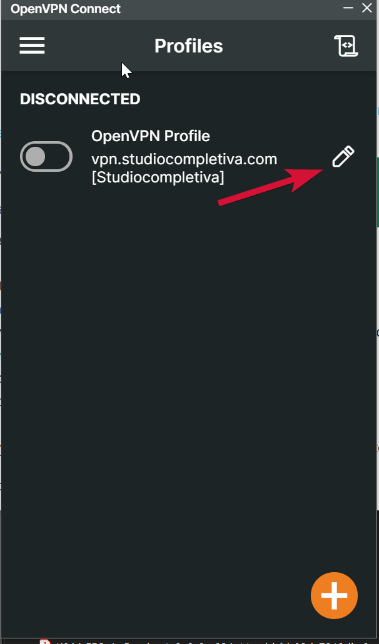
- Take a screenshot or write down your username, if you need it.
- On the bottom left of the window, click on DELETE PROFILE
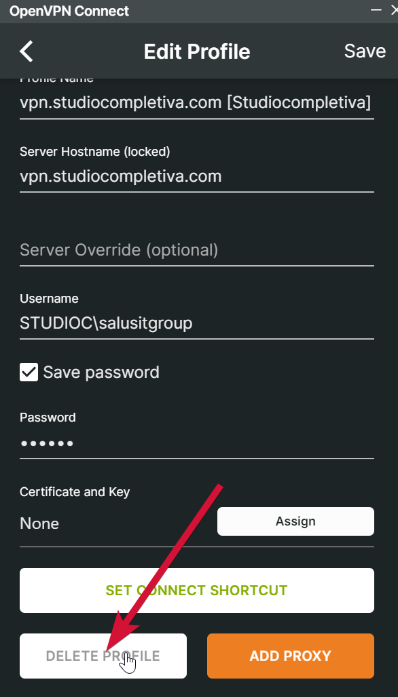
- Confirm in the pop-up that you want to remove the profile.
- Proceed to STEP 6 in the instructions above!